Deploying OVOC Image with VMware vSphere Cluster
This section describes how to deploy the OVOC image in a cluster with the VMware ESXi Web client. This procedure is run using the VMware OVF tool that can be installed on any Linux machine.
| ● | This procedure describes how to deploy the image using the OVF tool, which can be downloaded from: https://www.vmware.com/support/developer/ovf/ |
| ● | The OVOC image can also be deployed using the vSphere web client GUI. |
| ➢ | To run VMware OVF tool: |
| 1. | Transfer the VMware Virtual Machine installation package that you received from AudioCodes to your PC (see Transferring Files for file transfer instructions). |
| 2. | Open the VMware OVF tool. |
| 3. | Enter the following commands and press Enter: |
Copy
ovftool --disableVerification --noSSLVerify --name=$VMname -- datastore=$DataStore -dm=thin --acceptAllEulas --powerOn $ovaFilePath vi://$user:$password@$vCenterIP/$dataCenterName/host/$clusterName/$ESXIHostNameWhere:
| ● | $VMname(--name): is the name of the deployed machine |
| ● | $DataStore: data store for deployment |
| ● | $user:$password is the user and password of the VMware Host machine |
| ● | $ESXIHostName: deployed ESXI IP Address |
Example:
Copy
ovftool --disableVerification --noSSLVerify --name=ovoctest --datastore=Netapp04.lun1 -dm=thin --acceptAllEulas --powerOn c:\tmp\OVOC_VMware_.ova vi://vmware:P@ssword123@host/10.3.180.170OVF Example
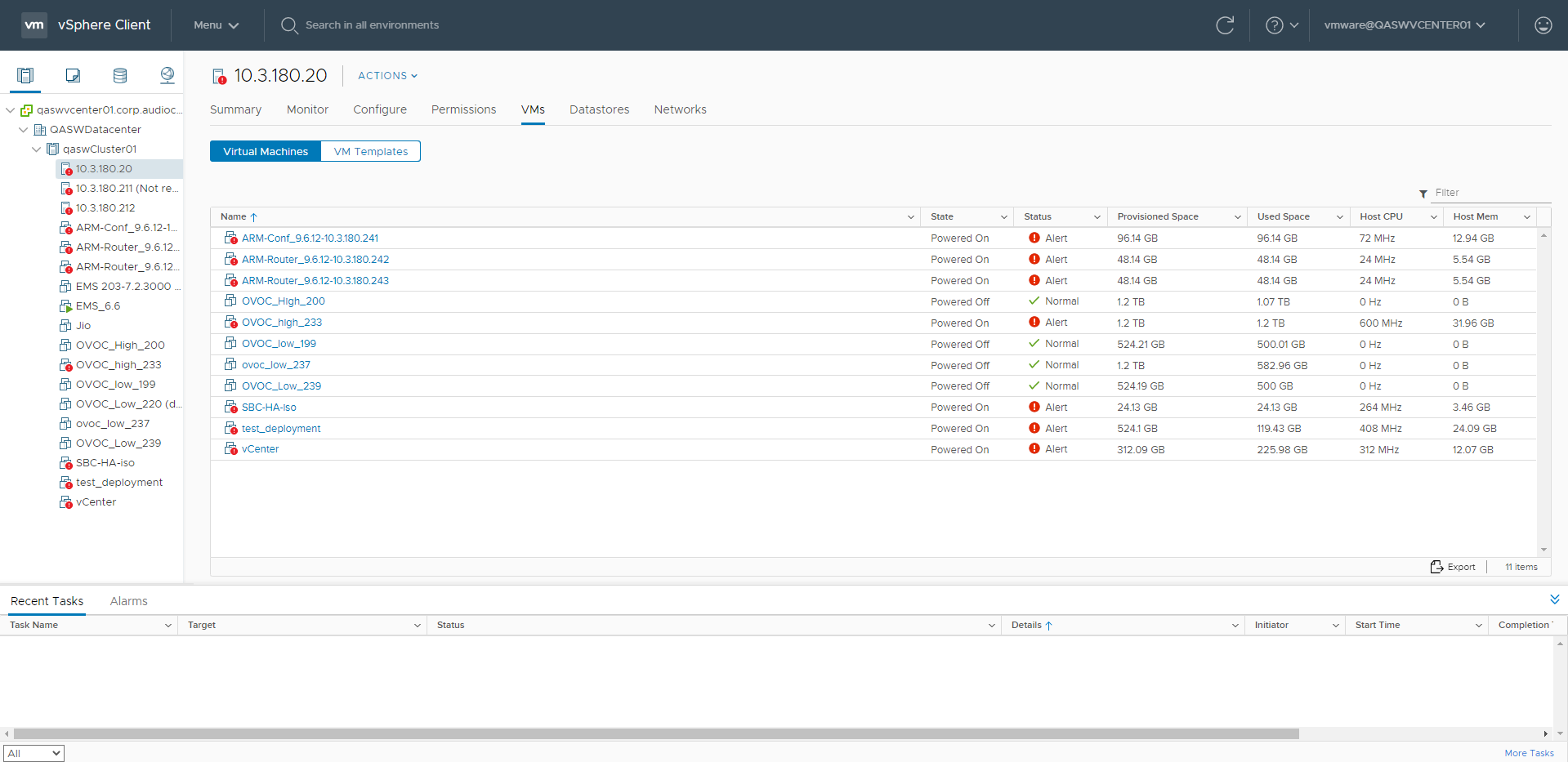
The following progress is displayed:
Copy
Opening OVA source: /data1//DVD5/.xxxx/OVOC-VMware-.xxxx.ovaOpening VI target: vi://root@172.17.135.9:443/Deploying to VI: vi://root@172.17.135.9:443/Disk progress: 10%
Transfer CompletedThe manifest validatesPowering on VM: FirstDeployTask CompletedWarning:- No manifest entry found for: 'OVOC-VMware-.xxxx-disk1.vmdk'.Completed successfully